

Get started with RealmJoin
Deploy RealmJoin in your Microsoft environment in just a few steps. Sign in with a Global Administrator account, review the required permissions, and complete the onboarding process to prepare your RealmJoin portal for configuration and deployment.
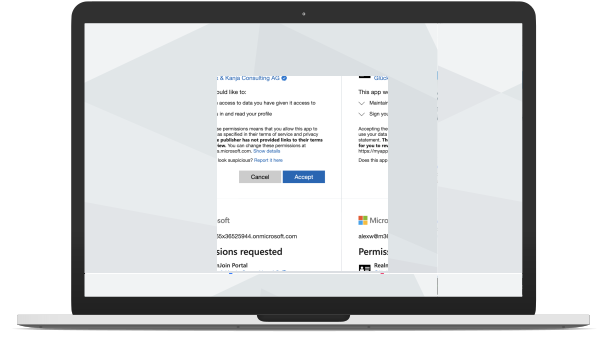
You'll need
- A Microsoft Entra ID tenant
- A Global Administrator account
- Admin consent
Questions before getting started? Explore the RealmJoin documentation at docs.realmjoin.com.
What each of them is for
None of them is a server, and nothing is installed on premises.
A Microsoft Entra ID tenant
RealmJoin connects to the tenant your Intune-managed devices live in and works through Microsoft Graph with the permissions you consent to.
A Global Administrator account
Sign in with it once to run the onboarding at portal.realmjoin.com; roles for the daily work are mapped to your Entra groups afterwards.
Admin consent
Quick Setup grants the permissions with one consent; Advanced Setup lets you grant each one yourself and revoke or downgrade it later. Every permission, and why it's there